How To Change The Language On A Laptop

Ever found yourself in a language tango with your laptop, where it's speaking French and you're desperately trying to order a pizza in English? Yeah, we've all been there. Tod...
Ever found yourself in a language tango with your laptop, where it's speaking French and you're desperately trying to order a pizza in English? Yeah, we've all been there. Today, we're going to tackle that language barrier and make your laptop understand you better than your neighbor's parrot.
Let's Get This Party Started
First things first, let's meet our host - the Language Settings party. It's a bit like the United Nations of your laptop, where all languages come together to have a chat. Now, don't worry, we're not going to learn a new language here. We're just going to teach your laptop a new one.
Windows: The Life of the Party
If you're a Windows user, you're in luck. Windows is like that friend who's always ready to lend a helping hand, or in this case, a language. Here's how you change the language:
Must Read
- Click on the Start button, that little Windows logo.
- Scroll down and click on Settings.
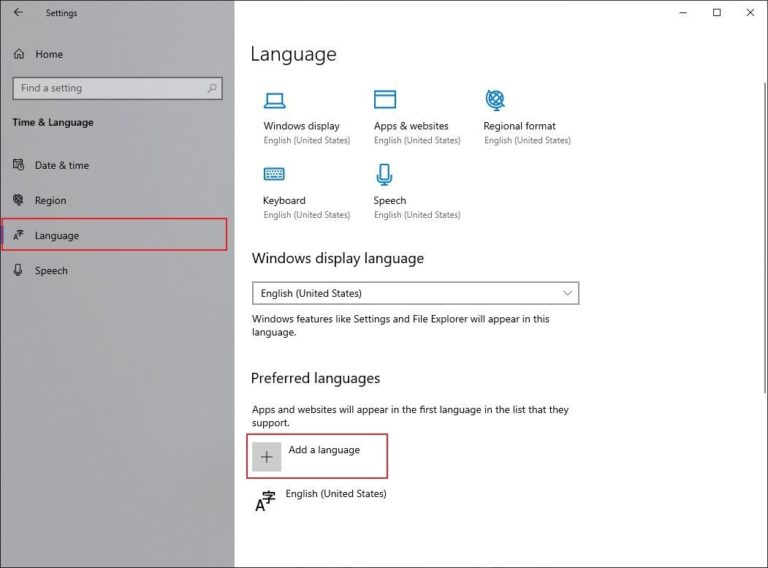
- Click on Time & Language.
- Click on Language.
- Click on Add a preferred language.
- Select the language you want from the list. If it's not there, type it in the search bar.
- Click on Next, then Add.
And there you have it! Your laptop is now bilingual. Or trilingual. Or even quadrilingual. The more, the merrier!
Mac: The Sophisticated One
Mac users, don't worry, your laptop isn't ignoring you. It's just speaking a language you don't understand yet. Here's how you change the language:
- Click on the Apple menu at the top left corner of your screen.
- Select System Preferences.
- Click on Language & Region.
- Click on the +' button at the bottom of the list.
- Select the language you want from the list. If it's not there, type it in the search bar.
- Click on Add.
Now, your Mac is as multilingual as your friend who's been traveling the world. Impressive, huh?
 How To Change Language In PC & Laptop Windows - Full Guide - YouTube
But Wait, There's More!
Changing the language is great, but what about the keyboard? You don't want to be typing in French when you meant to type in English. Here's how you can change your keyboard layout:
Windows: The Keyboard Juggler
Windows makes it easy to switch between keyboard layouts. Here's how:
- Go back to the Language settings we visited earlier.
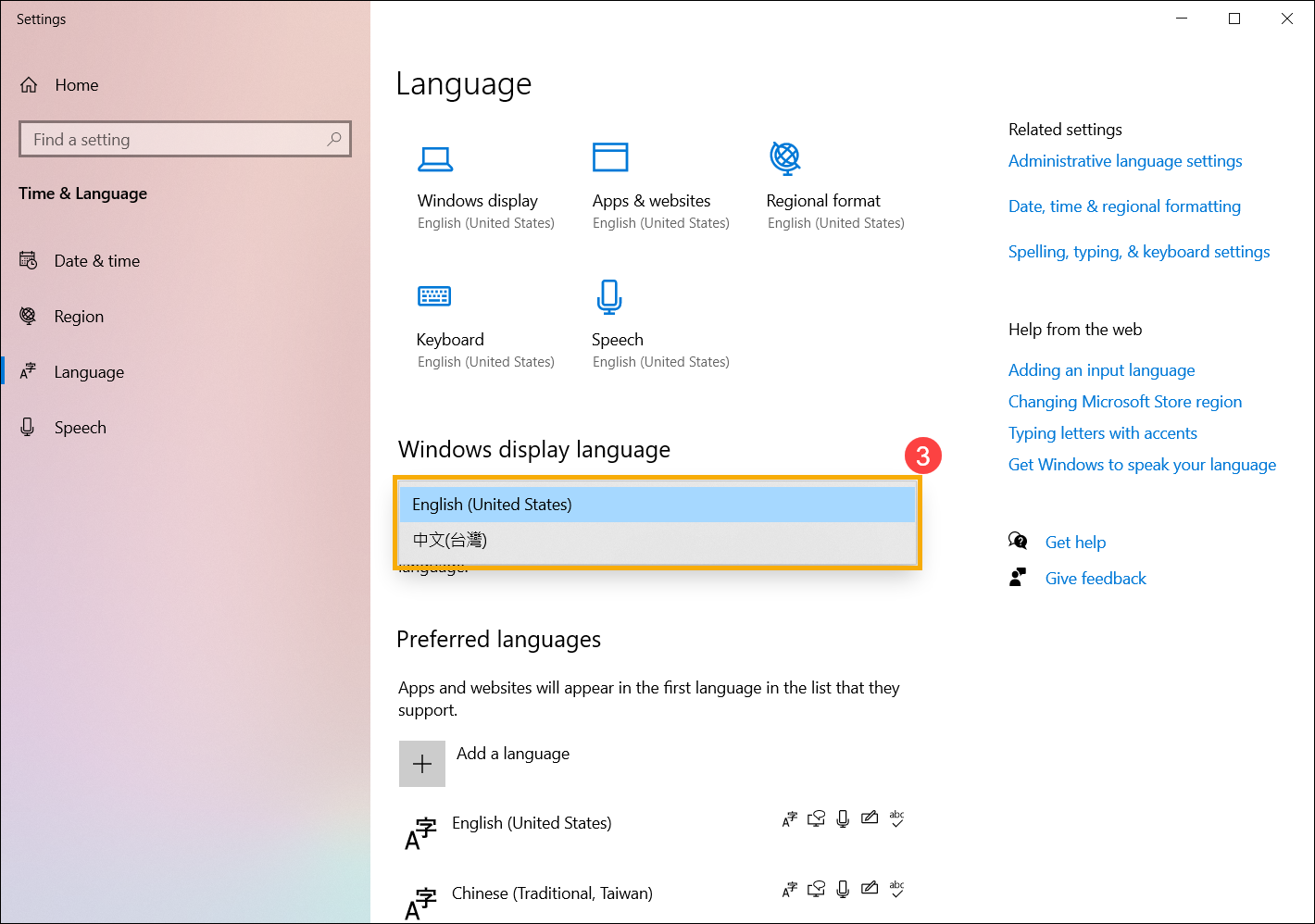
- Under the language you want to change, click on Options.
- Click on Add a keyboard.
- Select the keyboard layout you want from the list. If it's not there, type it in the search bar.
- Click on Add.
Now, you can switch between keyboard layouts using the Windows + Spacebar shortcut. It's like having a magic keyboard that understands all languages!
 [Windows 11/10] تغيير لغة النظام | مساعدة | ASUS
Mac: The Keyboard Whisperer
Macs also make it easy to switch between keyboard layouts. Here's how:
- Go back to the Language & Region settings we visited earlier.
- Under the language you want to change, click on the +' button.
- Select the keyboard layout you want from the list. If it's not there, type it in the search bar.
- Click on Add.
Now, you can switch between keyboard layouts using the Control + Spacebar shortcut. It's like having a keyboard that understands your every command!
And That's a Wrap!
And there you have it! You've just taught your laptop a new language. Isn't that something? You're like a linguistic superhero, flying around the world, teaching everyone a new language. Well, maybe not quite, but you get the idea. The next time your laptop starts speaking in tongues, you'll know exactly what to do.
So, go ahead, give it a try. Change the language, change the keyboard layout. Make your laptop as multilingual as you are. After all, the world is a big place, and the more languages you know, the more of it you can explore. And who knows, maybe one day, you'll be ordering that pizza in French, just because you can.
